Voice Over
View > Extensions > Vegasaur > Audio > Voice-Over
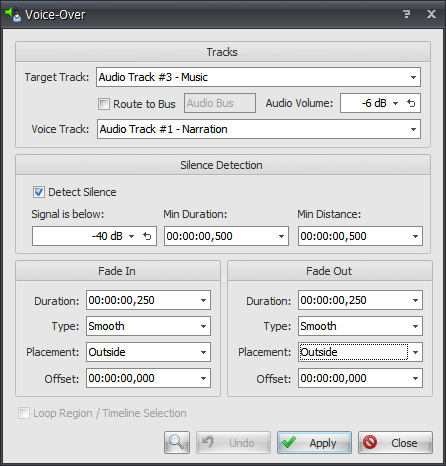
If a project has a background music track and a narrative track with voice comments, it is often necessary to adjust the audio volume of music and voice. This tool easily solves this challenge. It automatically lowers the volume of music whenever a voice exists in a narrative track, or raises the volume of the voice against the music - whichever is needed - by creating a volume envelope on the selected audio track. The level of volume, the curve type, the placement, and fade in and fade out times can be controlled.
Tracks
- Target Track: Specify the audio track for which the audio volume is to be adjusted. Typically, this is a music track for which the audio volume will be lowered. However, a voice track can also be selected to have its volume raised.
- Route to Bus: If checked, the target track will be routed to a specified bus. Any volume changes will be applied to the bus, instead of to the track.
- Audio Volume: Enter the value of the desired level of audio volume that should be applied to the target track.
- Voice Track: Selects the voice track from the drop-down list.
Silence Detection
Voice-Over tool provides automatic analysis options that can detect silent intervals inside audio files and nested projects. There are 3 options that determine which audio will be treated as "silence":
- Signal is Below: Treat audio below this level as silence.
- Min Duration: The minimum duration that will be treated as silence. To be treated as silence, the audio must remain below the level entered for at least this amount of time. The shortest duration value you can enter is 0.1 seconds.
- Min Distance: Merge intervals if the distance between them is less than the specified value. This will help you to ignore unwanted clicks and pops in your recording.
If silence detection is off, this tool only works if a voice track contains separate audio events, not one long audio event. It doesn't analyze audio data, but it looks for breaks in the narrative track events.
Fade In/Out
- Fade In Duration: Enter the amount of time it takes for the volume envelope to transition from the present volume setting to a new volume setting (which is specified in the Audio Volume control).
- Fade Out Duration: Enter the amount of time it takes for the volume envelope to restore the volume level back to its previous volume setting.
- Fade In/Out Type: Determines the curve type used by the Fade In/Out. Please refer to the Vegas Pro documentation for details.
- Placement: Determines where the volume envelope begins to transition: Outside, Center, Inside.
- Offset: Allows you to specify +/- offset values for more control on where the volume envelope begins to transition (eg. finish the fade-in a little after the voiceover event has already started, and start the fade-out before the voiceover event has finished).
Other Options
- Loop Region / Timeline Selection: Choose to apply the changes only within the loop region.
- Preview / Undo / Apply / Close: These buttons allows the settings to be applied, the results previewed, and undoing any change (if the result is unsatisfactory). To accept the changes, click the Close button after applying the options.
See also: Silence Detector